

Google Search Console helps you understand how Google discovers, indexes and displays your website, but simply connecting it will not improve your rankings. Its value comes from using reliable search data to identify changes, investigate problems and measure results. This Google Search Console guide explains the essential reports, the questions they answer and a practical workflow for beginners, while linking to focused instructions for more detailed tasks.
What Is Google Search Console?
Google Search Console is a Google service that reports how a website performs in Google Search. It shows information about search visibility, clicks, queries, indexing, page experience and technical issues that may affect Google’s ability to process your content. Adding a property gives you access to this information, but it does not change how Google ranks the website.
The platform is best understood as a monitoring and diagnostic tool. It helps you answer questions such as:
- Are people finding the website through Google Search?
- Which queries and pages generate organic clicks?
- Has search visibility increased or declined?
- Does Google know about the pages you want indexed?
- Are important URLs excluded from the index?
- Do groups of pages have Core Web Vitals problems?
These questions belong to different reports. A decline in clicks, for example, is a performance signal. A valuable page excluded by a noindex directive is an indexing problem. Keeping these categories separate makes diagnosis more reliable.
Google Search Console vs. Google Analytics
Google Search Console primarily describes what happens in Google Search before someone arrives on your website. It reports impressions, clicks, search queries and landing pages. Google Analytics measures activity on the website, including sessions, page views and user actions. The figures will not match exactly because the two systems use different metrics and counting methods.
Use Search Console to understand search discovery and visibility. Use Google Analytics to understand on-site behavior and outcomes. Reviewing both can help you connect an organic click with subsequent activity, such as a purchase, enquiry or newsletter registration.
Google Search Console vs. third-party SEO tools
Search Console provides first-party information from Google, but it is not a complete SEO management platform. Third-party tools may add competitor research, crawling, content planning, prioritization, collaboration or controlled publishing. If you are evaluating those roles, this comparison of SEO platforms and their approaches to implementing changes explains how different tool categories fit into an SEO process.
What Can You Do with Google Search Console?
Search Console turns several areas of organic search into measurable questions. Its reports help you monitor outcomes and diagnose constraints, but they do not automatically decide which business opportunity should receive attention first.
You can use Google Search Console to:
- measure clicks, impressions, click-through rate and average position;
- analyze performance by query, page, country, device and search appearance;
- check which known URLs are indexed or not indexed;
- review the reasons Google gives for excluding groups of URLs;
- submit and monitor XML sitemaps;
- inspect Google’s information about an individual URL;
- test whether a live page is accessible for indexing;
- monitor Core Web Vitals using real-user data;
- receive notifications about certain detected issues.
The practical limitation is that data still requires interpretation. A fall in clicks may result from lower demand, lost visibility, a change in click-through rate or a problem affecting particular pages. Search Console shows evidence, not a complete explanation.
If you need to turn these insights into prioritized and reviewed website changes, a connected SEO workflow can support the process from analysis through implementation and measurement. Search Console remains the source of search and diagnostic signals, while the operational workflow helps a team decide, approve and apply the response.
Who Should Use Google Search Console?
Google Search Console for beginners is accessible enough for website owners, but its data is also useful to specialists responsible for content, development and commercial performance.
The platform is particularly relevant to:
- website owners who need to confirm that important pages can appear in Google;
- e-commerce managers monitoring category and product-page visibility;
- content teams evaluating which topics, queries and articles attract search traffic;
- SEO specialists investigating performance, crawling and indexing;
- developers diagnosing technical conditions that affect page processing;
- agencies reporting results and coordinating fixes with clients.
Responsibility should still be controlled. A content editor may only need reporting access, while the person managing verification and users needs owner-level permissions. Give each person enough access to complete their work without distributing unnecessary control.
How to Add and Verify Your Website
Before Search Console can display private information about a website, you must add a property and prove that you control it. For a website, the two main choices are a Domain property and a URL-prefix property.
A Domain property covers the selected domain across its subdomains and protocols. A URL-prefix property covers only addresses beginning with the exact prefix you enter, including the specified protocol and any path. Domain properties require DNS verification, while URL-prefix properties support several verification options.
A Domain property is usually useful when you want a broad view of the website. A URL-prefix property can be appropriate when you need to monitor a specific protocol, subdomain or directory separately. Some organizations create both: a Domain property for overall coverage and selected URL-prefix properties for focused analysis.
The basic process is sequential:
- Sign in to Search Console with the appropriate Google account.
- Add a new property.
- Choose Domain or URL-prefix coverage.
- Complete one of the available ownership verification methods.
- Confirm that the correct users have appropriate permissions.
- Keep the verification method in place after setup.
Verification deserves careful handling because a small error in the property definition can fragment your data. Follow the dedicated instructions to set up Google Search Console and verify your website, including the choice of property type, DNS verification and alternative URL-prefix methods.
Understanding the Google Search Console Dashboard
The Overview page summarizes important information for the selected property. Depending on the website and available data, it can include search performance, recommendations, indexing information and supported enhancements. It is a starting point rather than a substitute for opening the underlying reports.
Each major area answers a different practical question:
- Performance: How often does the website appear in Google Search, and what generates clicks?
- Page indexing: Which known pages are indexed, and why are others not indexed?
- Sitemaps: Can Google process the submitted sitemap files?
- URL Inspection: What does Google know about one specific URL?
- Core Web Vitals: Do groups of pages provide a good loading, responsiveness and visual stability experience?
- Enhancements: Has Google detected supported structured features and related issues?
Always check the property selector before interpreting a report. Data from an HTTP property, an HTTPS property, one subdomain or one directory may represent only part of the website.
How to Measure Search Performance
The Search results Performance report shows four central metrics: clicks, impressions, CTR and average position. You can group or filter the information by dimensions including queries, pages, countries, devices, search appearance and dates.
- Clicks indicate how often a user clicked from Google Search to your property.
- Impressions indicate how often a result connected with your property was displayed under Google’s counting rules.
- CTR is clicks divided by impressions.
- Average position summarizes the position of the topmost relevant result for the selected grouping and should not be treated as a fixed daily ranking.
Analyze trends before isolated values. Compare equivalent periods, consider seasonality and check whether a decline affects the entire property, one page type or only a small group of queries. Recent preliminary data may still change, so avoid drawing strong conclusions from an incomplete period.
A useful beginner analysis starts with the Pages tab to find gains and losses, then moves to Queries to understand which searches contributed to the change. Filters for device, country and search type can reveal whether an apparent sitewide trend is actually limited to one segment.
For detailed instructions on comparisons, filters and opportunity analysis, see how to use the Google Search Console Performance report.
Optional example: Search Console data summarized in SEOAssistant
The following application screenshot is an optional example of page-level Search Console data summarized inside SEOAssistant. It is not the native Google Search Console interface. The view compares clicks, impressions, CTR and average position between periods and supports filtering by page type, growth opportunities, declines and robots.txt status.
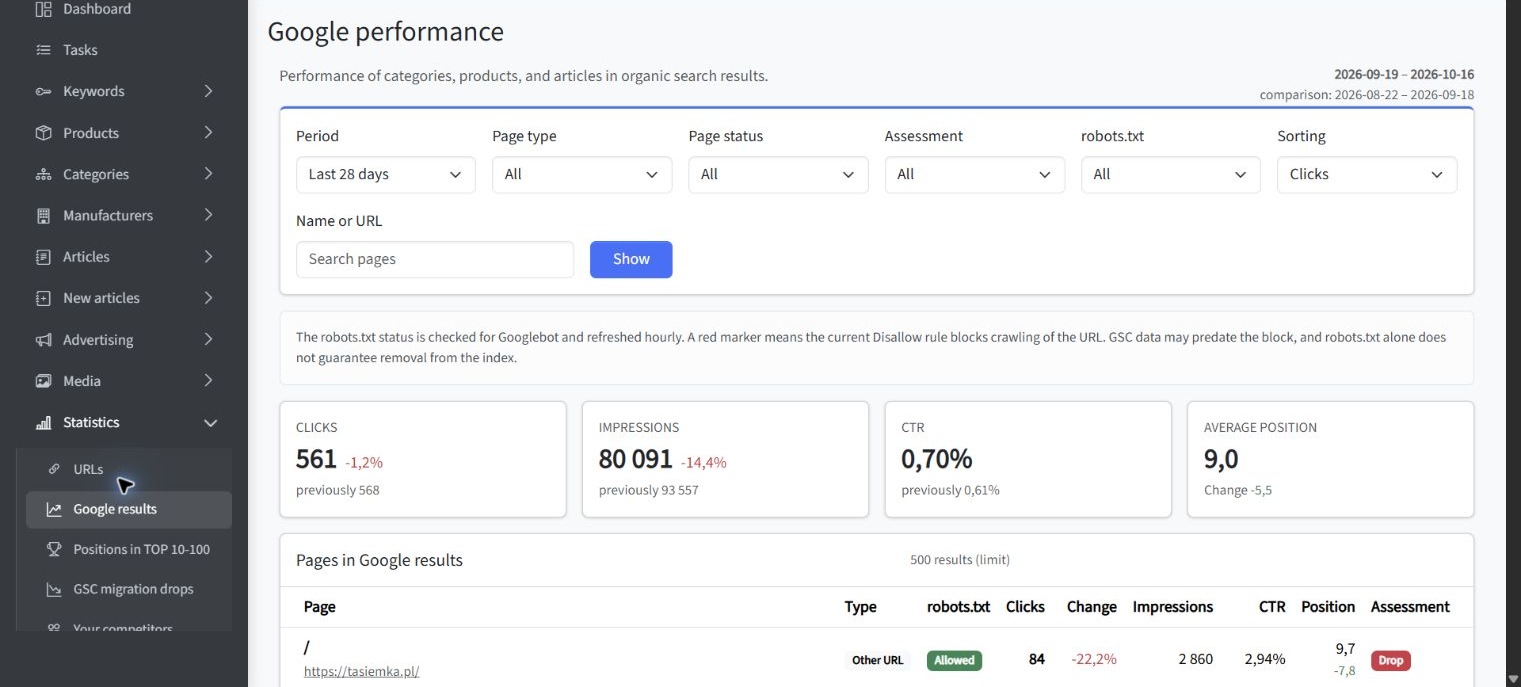
This type of consolidated view can help organize a review, but the interpretation still matters. A page with declining clicks should not be changed until you check impressions, relevant queries, seasonality, indexing status and recent website modifications.
How to Check Whether Google Can Index Your Pages
The Page indexing report provides a sitewide view of URLs Google knows about and separates indexed URLs from URLs that are not indexed. The report also groups non-indexed URLs by reason, helping you identify whether a condition is intentional or requires investigation.
Not indexed does not automatically mean broken. Redirects, duplicate URLs, alternate pages and deliberately excluded content may have no reason to appear independently in search results. The priority is to identify valuable canonical pages that should be indexed but are not.
When reviewing the report, ask these questions:
- Does the affected group contain pages intended for organic search?
- Are the URLs canonical, accessible and returning successful responses?
- Is a robots.txt rule or noindex directive preventing access or indexing?
- Does the issue affect one URL or a shared page template?
- Did the number of affected pages change after a release or migration?
Investigate patterns before individual examples. If hundreds of affected URLs use the same template, solving the shared cause is usually more effective than requesting indexing for each page. The focused guide explains how to understand and troubleshoot the Indexing report without treating every excluded URL as an SEO error.
How Sitemaps Help Google Discover Your Content
An XML sitemap is a structured file that identifies pages and other files you consider important. It can help Google discover content, particularly on large, new or complex websites, but submission remains a hint. It does not guarantee that every listed URL will be crawled, indexed or ranked.
A useful sitemap should generally contain the canonical, indexable URLs you want to appear in search results. Including redirected, blocked, duplicate or non-indexable addresses creates conflicting signals and makes sitemap monitoring less informative.
The Sitemaps report helps you check whether Google could retrieve and process a submitted file. This is distinct from page indexing. A successfully processed sitemap can still contain URLs that Google decides not to index.
Use the dedicated tutorial to submit a sitemap in Google Search Console, interpret its status and troubleshoot fetching or processing errors.
How to Inspect an Individual URL
The URL Inspection tool shows what Google knows about a specific page. Its default indexed view reflects information held in Google’s systems, while Test Live URL checks the current version against several requirements for appearing in Google. The live test does not replace the indexed view because the two views answer different questions.
Use URL Inspection when you need to:
- confirm whether a particular URL is indexed;
- review crawl and indexing information;
- compare the user-declared canonical with Google’s selected canonical;
- test whether a corrected live page is accessible;
- request indexing after publishing or making a meaningful update.
An indexing request places the URL into a processing queue, but it does not guarantee inclusion in the index. Repeated requests are not a substitute for fixing accessibility, canonicalization, content or quality problems. For numerous URLs, a sitemap and a sitewide diagnosis are more appropriate.
The complete walkthrough explains how to inspect individual URLs in Google Search Console and distinguish Google’s indexed information from the current live page.
How to Monitor Core Web Vitals and Page Experience
The Core Web Vitals report uses real-user field data and organizes similar URLs into groups. It reports three metrics: LCP for loading performance, INP for responsiveness and CLS for visual stability. Groups are classified as Good, Need improvement or Poor for mobile and desktop data.
The report is useful for finding shared experience problems, but it is not a complete technical performance audit. Some URLs may be absent because there is not enough field data, and an example URL represents a broader group that may share the same template or components.
A sensible investigation process is:
- Identify the affected metric, device type and URL group.
- Open representative URLs from the group.
- Use page-level diagnostic tools to investigate likely causes.
- Fix the shared template, component or delivery problem.
- Test the change before releasing it widely.
- Start validation and monitor the group over time.
Passing Core Web Vitals can support a better user experience, but it does not guarantee higher rankings. Review the detailed guide to review Core Web Vitals in Google Search Console and understand how field data, URL grouping and validation work.
A Simple Weekly Google Search Console Workflow
You do not need to react to every daily movement. A repeatable weekly review is usually more useful because it separates routine monitoring from urgent investigation. Use comparable date ranges and document important changes so that future movements have context.
- Check notifications and the Overview page. Look for new issues or unexpected changes.
- Review total clicks and impressions. Compare the latest complete period with an equivalent previous period.
- Open the Pages tab. Identify landing pages with meaningful gains or losses.
- Review relevant queries. Determine whether demand, visibility or CTR appears to be changing.
- Check indexing trends. Focus on unexpected increases in non-indexed valuable pages.
- Review sitemap processing. Confirm that important sitemap files remain accessible.
- Inspect selected URLs. Use URL Inspection for new, updated or problematic pages.
- Check experience signals. Look for new Core Web Vitals groups requiring investigation.
- Record decisions. Assign each verified issue an owner, priority and next action.
The workflow should produce decisions, not merely observations. A drop affecting one unimportant page may require no action, while a new indexing problem across a high-value template may deserve immediate escalation.
Optional example: consolidated sitemap and indexing review
The following SEOAssistant screenshot illustrates an optional consolidated review using Google Search Console data. It is not the native Search Console interface. The view can organize URLs by page type, sitemap presence and inspection status, making it easier to compare sitemap coverage with indexing information.
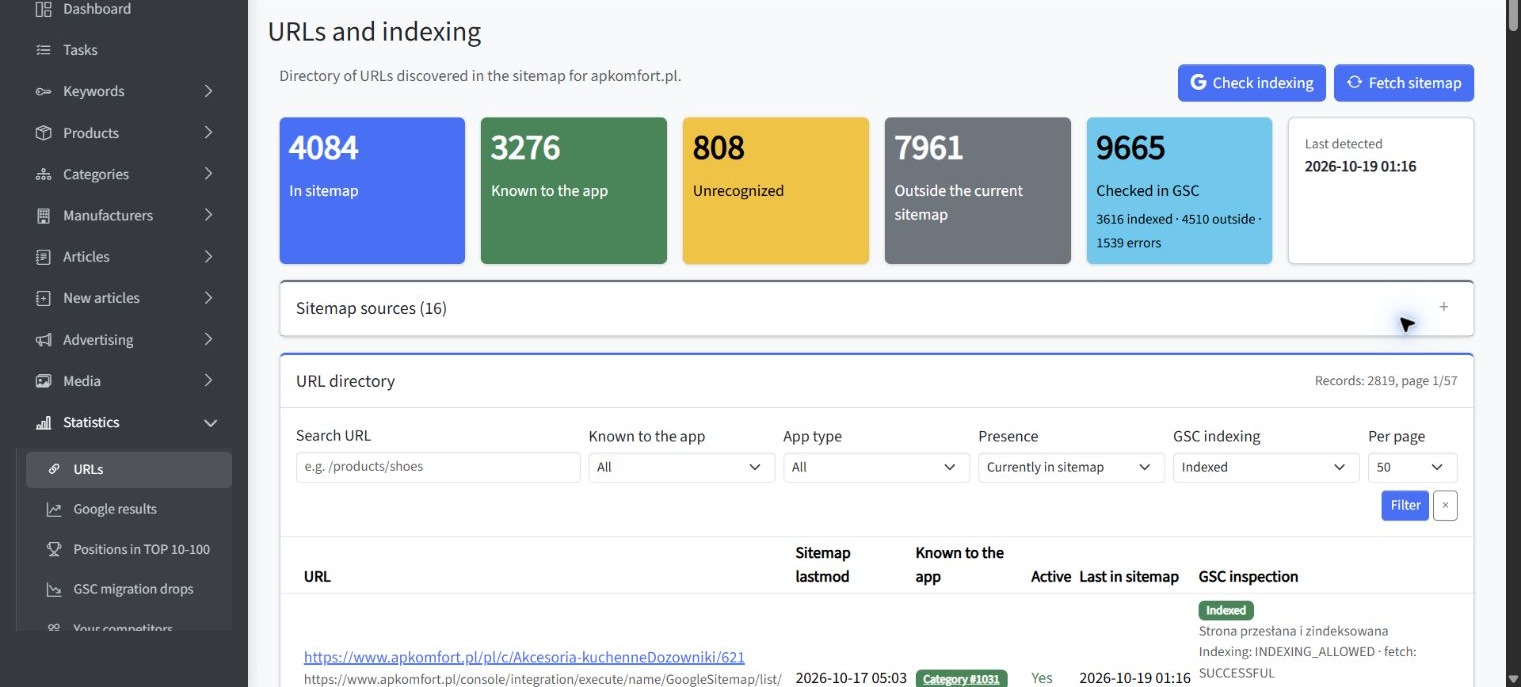
A consolidated view can accelerate triage, but it should not replace verification in the relevant Search Console report. Use it to identify a pattern, then inspect the affected group and confirm the technical cause before approving changes.
Common Beginner Mistakes to Avoid
Most early mistakes come from treating one metric as a conclusion. Search Console data becomes more useful when you compare reports, validate assumptions and distinguish visibility from technical eligibility.
- Expecting setup to improve rankings. Search Console provides information and controls, not an automatic ranking boost.
- Choosing the wrong property. An incomplete URL-prefix can omit protocols, subdomains or directories you intended to monitor.
- Reading average position as a fixed rank. It is an aggregated metric affected by the selected dimensions and context.
- Assuming every non-indexed URL is a problem. Many exclusions are intentional or appropriate.
- Assuming sitemap submission guarantees indexing. A sitemap supports discovery but does not force Google to include a page.
- Using URL Inspection for sitewide monitoring. It diagnoses individual URLs; grouped issues belong in the Page indexing report.
- Reacting to one day of data. Short-term movements can reflect incomplete data, normal variation or changing demand.
- Changing pages without recording the change. Without implementation dates, later comparisons are difficult to interpret.
- Attributing a result to one action without evidence. Search performance can change for several simultaneous reasons.
The corrective principle is simple: begin with a trend, narrow it to a page or URL group, verify the relevant report and only then choose an action.
Frequently Asked Questions About Google Search Console
Is Google Search Console an SEO tool?
Yes, but its role is specific. It provides first-party Google Search performance data, indexing information and diagnostics. It does not replace crawling software, analytics, competitor research, content planning or implementation controls.
Does Google Search Console improve rankings?
No. Adding and verifying a property does not directly change rankings. The platform helps you identify opportunities and problems, but improvement depends on the quality and relevance of the actions you take.
How long does it take for data to appear?
A newly verified property may not immediately contain complete information. Availability depends on the report and whether Google has enough relevant data. Confirm that you selected the correct property before assuming collection has failed.
Why are Search Console clicks different from Analytics sessions?
A click and a session are not the same event, and the platforms process information differently. Differences are therefore expected. Compare trends and investigate large unexplained gaps rather than trying to force exact equality.
Should every page on my website be indexed?
No. Administrative pages, duplicates, filtered URLs and other low-value or intentionally excluded addresses may not need independent indexation. Focus on whether valuable canonical pages intended for search are eligible and indexed.
Is a sitemap required?
Google can often discover a well-linked website without one, but a sitemap can improve discovery for large, new, complex or media-heavy sites. It also provides a useful monitoring point in Search Console.
How often should I check Search Console?
A weekly review is a practical starting point for an actively managed website. Check it additionally after major releases, migrations, template changes or unexpected organic traffic movements. Google also recommends monitoring after site changes and paying attention to issue notifications.
Key Takeaways from This Google Search Console Guide
The main conclusions for a beginner are:
- Google Search Console measures search performance and provides indexing and experience diagnostics.
- It complements Google Analytics and third-party SEO tools rather than replacing them.
- Property selection determines which parts of the website your reports cover.
- The Performance report explains visibility and clicks, while indexing reports explain technical eligibility.
- Not every excluded URL requires a fix.
- Sitemaps help discovery but do not guarantee indexing.
- URL Inspection is designed for individual pages, not bulk monitoring.
- Core Web Vitals data should lead to template-level investigation where appropriate.
- Reliable decisions require comparison, verification and documented implementation.
The central distinction is between activity and outcome. Opening reports, submitting URLs and exporting data are activities. The useful outcome is a verified decision about what should be fixed, improved, monitored or deliberately left unchanged.
Summary: How to Use Google Search Console Effectively
For beginners, the best way to use Google Search Console is to assign each report a clear question. Use Performance to understand search visibility, Page indexing to identify coverage problems, Sitemaps to monitor discovery files, URL Inspection to diagnose individual pages and Core Web Vitals to detect shared experience issues.
Start with correct property setup, establish a weekly review and investigate patterns before changing the website. Search Console will not perform SEO for you, but it gives you evidence that can make SEO decisions more controlled, measurable and accountable.