

The Google Search Console URL Inspection tool helps you answer a focused question: what does Google know about this specific URL? It can show information about the indexed version, test the current live page, identify crawl or indexing barriers, and let you request another indexing attempt. The important distinction is that URL Inspection diagnoses one address at a time. It does not replace sitewide indexing reports, technical checks, or a broader SEO review.
What the Google Search Console URL Inspection Tool Does
The URL Inspection tool provides information about an individual page within a Search Console property you can access. You can use it to investigate why a page is not indexed, review Google’s last recorded crawl, test whether the current version is accessible, and check which URL Google selected as canonical.
The tool presents two related but different sources of information:
- Google Index data describes the version Google last crawled and processed.
- Live Test data is generated when you ask Google to test the page that is currently available.
This distinction matters whenever you have recently published, updated, redirected, or unblocked a page. The indexed information can still describe an older version, while the live test can confirm whether the latest technical changes are visible to Google.
If you are still learning how the tool fits into the wider platform, start with this Google Search Console guide for beginners. URL Inspection is most useful when you already know which page requires investigation.
How to Inspect a URL in Google Search Console
To inspect a page, open the correct Search Console property and follow this process:
- Copy the complete URL you want to inspect, including the protocol and final path.
- Paste it into the inspection field at the top of Search Console.
- Wait while Search Console retrieves information from the Google index.
- Read the main verdict, then expand the page indexing details.
- Check the last crawl, page fetch, crawl permission, indexing permission, and canonical fields.
- If the page has changed since the recorded crawl, select Test live URL.
The inspected URL must belong to the property currently open in Search Console. Differences between HTTP and HTTPS, subdomains, and URL prefixes can affect whether the address is covered by that property. You can also open URL Inspection from an inspection option shown beside URLs in several Search Console reports.
Always inspect the exact address you want Google to evaluate. A trailing slash, parameter, alternate hostname, or different protocol may represent a separate URL and produce a different result.
How to Read the “URL Is on Google” Result
URL is on Google generally means that the inspected URL has been indexed and may be eligible to appear in Google Search. It does not promise that the page will appear for a particular query, maintain a specific ranking, or be displayed every time you search for its address.
The verdict also does not test every condition that can affect visibility. Manual actions, security concerns, legal removals, temporary removals, and other search policies may need to be checked elsewhere in Search Console.
Details to check even when the URL is indexed
A positive headline is only the starting point. Expand the indexing section and review the supporting information:
- Last crawl shows when Google collected the information displayed in the indexed view.
- Page fetch indicates whether Google successfully retrieved the page during that crawl.
- Crawl allowed shows whether robots.txt permitted access.
- Indexing allowed indicates whether Google detected a directive that prevented indexing.
- Google-selected canonical identifies the URL Google treated as the main version.
These fields can reveal a problem hidden behind an apparently positive result. For example, a page may be indexed but Google may have selected a different canonical URL than the one your site declares.
What “URL Is Not on Google” Can Mean
URL is not on Google is a conclusion, not a complete diagnosis. The page may be new, inaccessible, intentionally excluded, treated as a duplicate, or known to Google but not selected for indexing.
Common explanations include:
- Google does not know the URL yet. The page may have few or no crawlable internal links and may not be included in a sitemap.
- Crawling is blocked. A robots.txt rule may prevent Google from fetching the page.
- Indexing is not allowed. The page may contain a noindex directive in its HTML or HTTP response.
- The page could not be fetched. Server errors, access restrictions, DNS problems, or other availability issues may interrupt the crawl.
- The URL redirects. Google may process the destination rather than index the original address as a standalone page.
- Google selected another canonical. The inspected URL may be considered an alternate or duplicate version.
- The URL was discovered or crawled but is not currently indexed. In this situation, technical accessibility alone does not ensure inclusion.
Expand the page indexing section and use the specific reason shown there to determine your next step. Do not request indexing before resolving a clear block such as noindex, robots.txt restrictions, persistent server errors, or an unintended redirect.
If the same issue affects a template, directory, or substantial group of pages, move from single-page diagnosis to the Page indexing report. A broader report will help you investigate sitewide indexing patterns instead of repeatedly checking isolated examples. Google describes URL Inspection as the tool for a specific page, while the Page indexing report provides a wider view of known URLs.
Indexed Data vs. Test Live URL
The most common URL Inspection mistake is treating indexed data and live test data as if they describe the same moment. They do not.
The Google indexed version
The default view shows information collected during Google’s last recorded crawl and indexing attempt. Check the Last crawl date before drawing conclusions. If you changed the page after that date, the indexed view may still show an old noindex directive, an earlier canonical, a previous HTTP response, or content that is no longer present.
The Test Live URL result
When you select Test live URL, Google fetches the current page and checks whether it appears technically available for indexing. This is useful after correcting a crawl block, removing noindex, repairing a server response, or publishing a substantial update.
A successful live test does not mean the page has already been indexed. It also cannot predict every indexing decision. In particular, the live test does not determine Google’s final canonical selection, confirm sitemap inclusion, or guarantee that the page meets every quality and policy requirement.
Use the two views as a comparison:
- If the indexed result shows a problem but the live test passes, Google may not have processed your fix yet.
- If both views show the same problem, the issue is probably still present on the live page.
- If the indexed view is valid but the live test fails, investigate a new availability or configuration problem before Google crawls the page again.
The live test supports diagnosis. It does not update the Google index by itself.
How to Check Crawl, Indexing, and Canonical Information
A reliable inspection follows a fixed order. Start with access, then check indexing permissions, and only then evaluate canonicalization.
- Review the page fetch. Confirm that Google retrieved the page successfully rather than encountering a server, access, or not-found response.
- Check whether crawling is allowed. If robots.txt blocks the URL, Google may be unable to inspect the page content and its indexing directives.
- Check whether indexing is allowed. If the page returns noindex, remove it only when the URL is genuinely intended for search.
- Compare the canonical fields. Review the user-declared canonical and the Google-selected canonical.
- Inspect the selected canonical if necessary. Determine whether Google has chosen the correct primary version or whether conflicting signals require correction.
The user-declared canonical is the URL your site presents as its preferred version. It may be communicated through a canonical link element, an HTTP header, a sitemap, or other signals. The Google-selected canonical is the version Google actually chooses after processing the available signals.
These values can differ because a declared canonical is a signal rather than an instruction Google must follow. When they do not match, review redirects, internal links, sitemap URLs, duplicate content, protocol and hostname consistency, and canonical elements. The live test cannot show a final Google-selected canonical because that decision is made during indexing.
How to Review Page Resources and Enhancements
URL Inspection can provide more than a top-level indexing verdict. Depending on the result, you may be able to open the crawled or tested page details and review the returned HTML, HTTP response information, rendered screenshot, loaded resources, and JavaScript output. These details help determine whether Google received the same page that users and site administrators expected.
Resource information is especially useful when essential scripts, stylesheets, images, or API responses fail during rendering. A resource warning is not automatically an indexing failure. Prioritize resources that affect the main content, navigation, canonical information, or structured data rather than treating every blocked decorative file as equally important.
The report may also show detected enhancements or structured data details. Availability depends on the features implemented on the page. A valid enhancement result means the relevant markup passed the reported checks; it does not guarantee that Google will display a rich result.
When and How to Request Indexing
The request indexing Google Search Console option is appropriate for a small number of important new or substantially updated URLs. It is particularly useful after you have confirmed through a live test that a previous technical problem has been corrected.
Use the following sequence:
- Inspect the complete URL.
- Read the indexed result and identify any reported problem.
- Correct the issue on the website.
- Run Test live URL to verify the current version.
- Select Request indexing if the page is available for indexing.
- Allow Google time to recrawl and process the URL.
Submitting the request places the URL into a recrawl process. It does not force immediate crawling, indexing, or ranking. Google applies quotas to individual requests, and repeatedly requesting indexing for the same URL does not make the crawl happen faster.
Before submitting, confirm that the page returns the intended response, is not blocked, allows indexing, uses the correct canonical, and contains content worth indexing. A request cannot compensate for unresolved technical barriers or a page that Google treats as a duplicate.
What to Do After Publishing or Updating a Page
URL Inspection works best as one part of a repeatable publishing process. After making a page live, use the following workflow:
- Open the public URL in a browser and confirm that it loads without authentication.
- Verify the response, indexability, canonical declaration, and final redirect behavior.
- Add crawlable internal links from relevant existing pages.
- Include the canonical URL in the appropriate XML sitemap when applicable.
- Inspect the URL in Google Search Console.
- Run a live test if the indexed view is missing or describes an older version.
- Request indexing for a small number of important pages when appropriate.
- Return later to confirm whether Google has crawled and processed the update.
For larger batches of new or changed pages, use a sitemap rather than submitting every address individually. An accurate sitemap can help Google discover URLs through a sitemap, although submission does not guarantee that every listed page will be indexed.
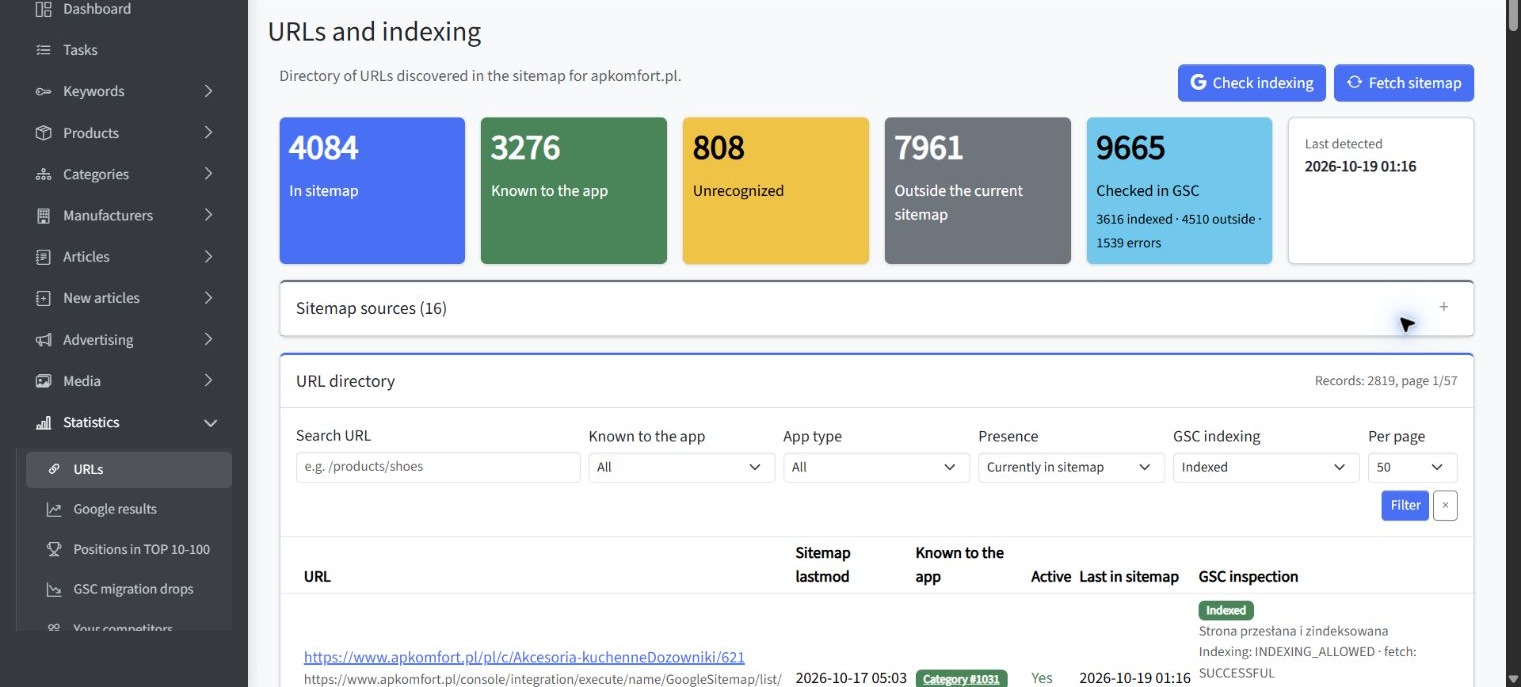
Search Console remains the source for inspecting Google’s information about a single URL. When a team manages many pages, a separate monitoring view can complement that diagnosis by organizing sitemap coverage and inspection status across a larger URL set. The following SEOAssistant example illustrates that broader workflow rather than the native single-URL inspection screen.
Common URL Inspection Misinterpretations
The tool becomes more useful when you separate what it confirms from what it cannot prove. Avoid these common conclusions:
- “URL is on Google means it will rank.” Indexing creates eligibility for search visibility; it does not establish a ranking position.
- “A successful live test means the page is indexed.” It means the current page appears accessible and potentially indexable under the conditions tested.
- “The indexed result describes the current page.” It describes information associated with the recorded crawl, which may predate your latest changes.
- “Request indexing guarantees inclusion.” It asks Google to revisit the URL but does not control the final indexing decision.
- “Submitting the request repeatedly will speed it up.” Repeated submissions for the same URL do not create faster crawling.
- “A different Google-selected canonical is always an error.” Google may have identified a stronger or more consistent version. Investigate the signals before changing the page.
- “Every non-indexed URL needs to be fixed.” Redirects, duplicate variants, filtered pages, and intentionally excluded content may be correctly absent from the index.
- “One inspected URL explains a sitewide problem.” A single page is evidence, not a complete sample of an entire template or directory.
A useful interpretation always combines the headline verdict with the crawl date, detailed reason, live result, canonical information, and the intended role of the page.
Key Takeaways
Use these principles when working with the Google Search Console URL Inspection tool:
- Inspect the exact URL within the correct Search Console property.
- Treat the Google indexed version and the current live page as separate sources of information.
- Check the last crawl date before assuming Google has processed a recent change.
- Review crawl access, indexing permission, page fetch, and canonical selection in that order.
- Use Test Live URL to verify a fix, not to prove that indexing has occurred.
- Request indexing only after the page is technically ready.
- Do not repeat requests in an attempt to accelerate crawling.
- Use URL Inspection for one page and the Page indexing report for recurring or sitewide patterns.
- Use sitemaps and internal links to support discovery across larger URL sets.
Summary
The URL Inspection tool is a diagnostic tool, not an indexing switch. Its main value comes from comparing what Google recorded during its previous crawl with what the live page returns now. Begin with the main verdict, verify the last crawl date, examine access and indexing controls, and compare the declared canonical with Google’s selected version.
If the page has changed, test the live URL before requesting indexing. If the same issue appears across many pages, stop inspecting them one by one and move to a sitewide report. This approach turns URL Inspection into a controlled troubleshooting process: identify the current state, verify the cause, implement the fix, test the result, and then allow Google to process the updated page.